meier-online
Members
-
Benutzer seit
-
Letzter Besuch
-
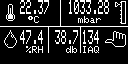
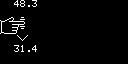
Hallo Tinkerforge-Fans, Ich habe das Tabletop-Weather-Station-Kit um den Soundsensor erweitert. Jetzt möchte ich gerne einen Screenshot machen. Das LCD-Bricklet hat ja die lcd128x64.read_pixels() Methode, mit Hilfe der das gehen sollte. Ich habe dazu ein kleines Python-Prgramm geschrieben, es klappt auch soweit, jedoch gibt es unvollständige Screenshots: Auf dem Startscreen fehlen die Tabs, auf den Graphic-Screen ausserdem die eigentliche Grafik. Es wird offenbar immer nur ein Teil der LCD-Pixel übertragen. Hier ist mein Code für den Screenshot: from tabletop_weather_station_demo.tinkerforge.ip_connection import IPConnection, Error from tabletop_weather_station_demo.tinkerforge.bricklet_lcd_128x64 import BrickletLCD128x64 from tinkerforge.ip_connection import IPConnection, Error from tinkerforge.bricklet_lcd_128x64 import BrickletLCD128x64 import png HOST = "localhost" PORT = 4223 UID = "H9a" ipcon = IPConnection() lcd128x64 = BrickletLCD128x64(UID, ipcon) ipcon.connect(HOST, PORT) pixels = lcd128x64.read_pixels(0,0,127,63) intpixels = [255 if x else 0 for x in pixels] f = open("lcdimage.png", "wb") w = png.Writer(128,64, greyscale=True, bitdepth=8, alpha=False) rows = w.array_scanlines(intpixels) w.write(f, rows) f.close() Hat jemand eine Idee, wieso das so ist und wie einen vollständigen Screenshot anfertigen kann? Gruß Karsten